Quick start: your first game in five minutes
For teachers · 5 minutes · Free
Find a ready game in the library, or make your own. Open it on your class screen, press full screen, pick your teams and play. Students don't need accounts or devices.
Step by step
Find a game, or make one
The game library has thousands of free games made by teachers. Search for your topic and level. Can't find it? Make one with AI in about a minute, or write it yourself.
Playing library games needs no account. Making games needs a free account.
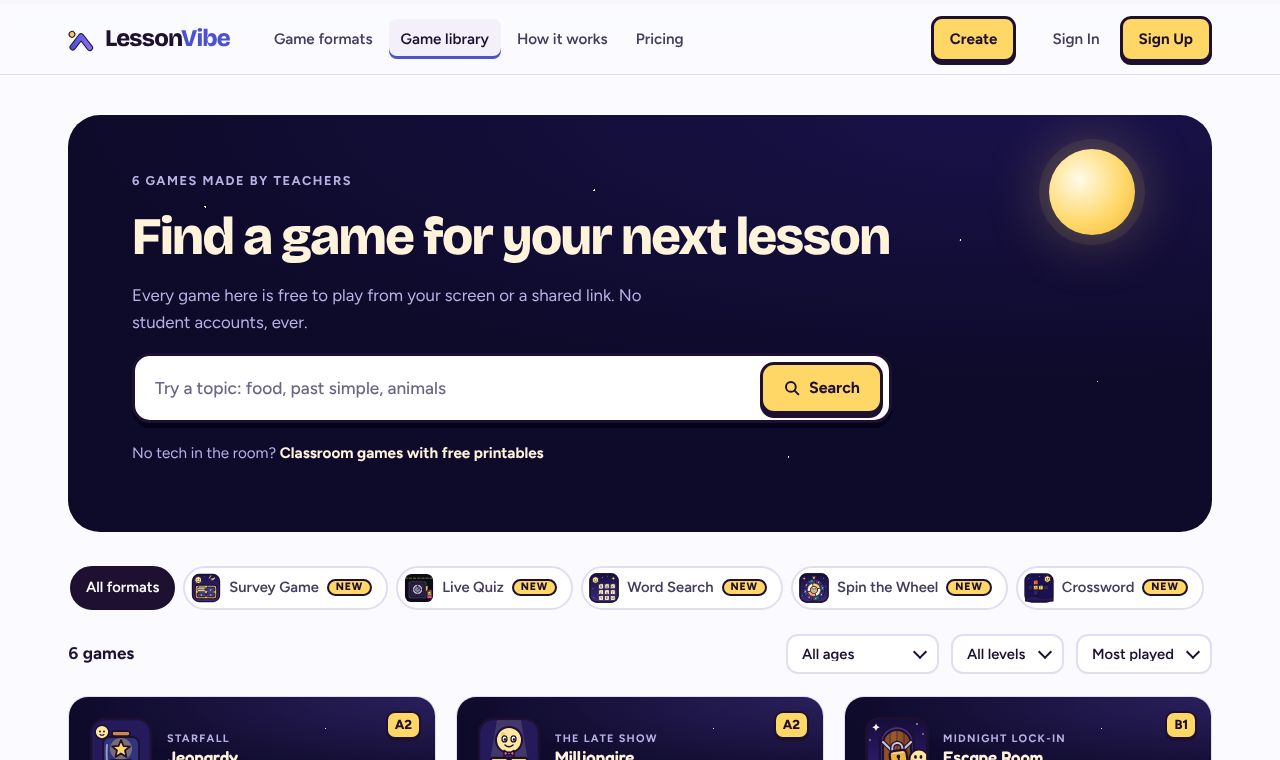
Open it on your class screen
Open the game's page on the computer that is on your board or projector. The game is at the top of the page.
Press full screen and pick teams
Each game has a full screen button. Its start screen lets you choose teams and rules. Scores are for teams, never for single students.
Play
Students answer out loud, with their hands up, or on the board. A few games can use phones too: see how to bring students' phones into a game.
See how they did
At the end of many games a How did we do? card shows what the class got right first time. Signed in, you keep it in Class results.
Next steps
- Print a worksheet for before or after the game.
- Star the game or put it in a folder so it is ready next lesson.
Related
Still stuck? Email hello@lessonvibe.com and a real person will write back.