How to find a ready game in the library
For teachers · 2 minutes · No account needed
Go to the Game library, type a topic such as "food" or "past simple", then narrow it down with the format buttons and the Age group and Level menus.
Step by step
Open the library
Click Game library at the top of any page, or go to lessonvibe.com/games.
Search for your topic
Type a topic, a grammar point or a unit name in the search box. Short searches work best: "animals" finds more than "animals unit 3 year 2".
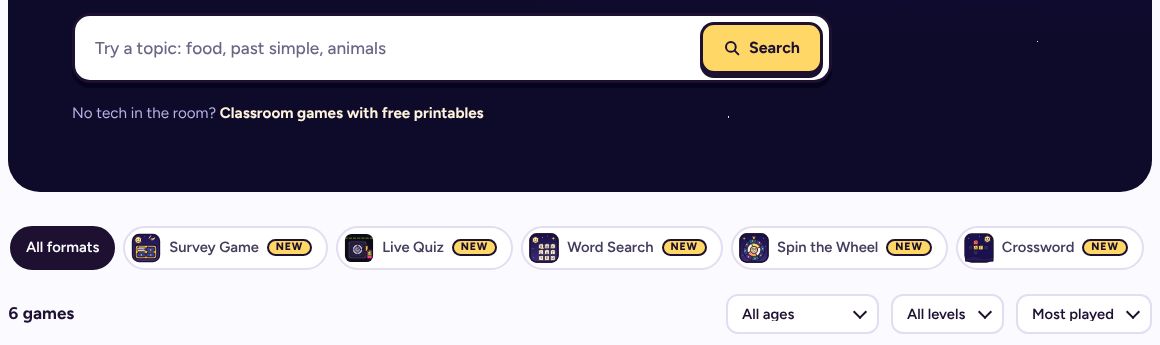
Filter by format, age and level
The buttons under the search pick a game format, such as Jeopardy or Escape Room. The menus pick an age group (young learners, teens or adults) and a level (A1 to A2, B1 to B2, C1 to C2). Sort by Most played, Newest or Top rated.
Open a game and check it
Press Play to open the game's page. The What's inside tab lists the questions, so you can check them before class.
Signed in, you see every question and can show the answers. Guests see the first few.
Keep it for later
Tap the star to save it to My games. See stars and folders.
If it doesn't work
Search finds nothing
Try one word instead of several, check the spelling, and press Clear all to remove filters you set earlier. Still nothing? Make the game yourself: Make one like this on any card starts your own game with the same settings.
The game is close, but not quite right
Open it and press Make a copy to edit. The copy is yours to change. See how to edit a game.
Related
- How to make a game with AI
- How to make a game by hand (no AI)
- How to save games with stars and folders
Still stuck? Email hello@lessonvibe.com and a real person will write back.