Help centre › Organising your games
How to save games with stars and folders
For teachers · 2 minutes · Free account
Tap the star on any game to keep it in My games. Make a folder for each class or unit, and put games in it with Put in folders. A game can sit in several folders.
Step by step
Star a game
The star is on every game card in the library and at the top of every game page. A star keeps the game in My games and follows the author's fixes. It is not a copy.
Open My games
From the account menu (your initials, top right). The side menu has All my games, Made by me, Starred, Recently played and your folders.
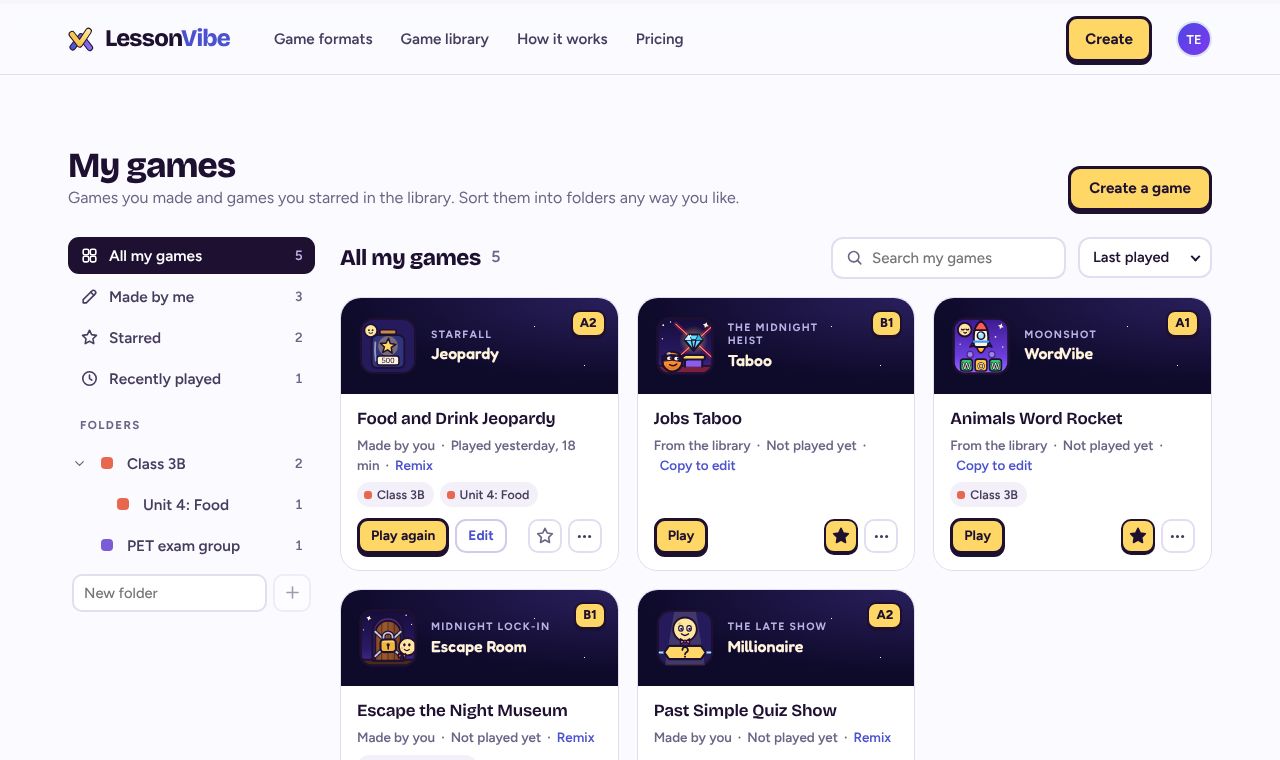
Make a folder
Press New folder and name it after a class, a unit or a level. A folder can hold subfolders, for example a class with a folder per unit.
Put games in folders
On a computer, drag a card onto a folder. On any screen, open the card's ⋯ menu and press Put in folders.
If it doesn't work
A starred game says "No longer shared"
Its author made it private. Press Remove to take it off your list.
Does deleting a folder delete my games?
No. Deleting a folder deletes its subfolders, never the games in them.
Where are the games I played last week?
Recently played shows the games you started in the last 30 days.
Related
- How to edit a game before you play
- How to find a ready game in the library
- How to see how your class did
Still stuck? Email hello@lessonvibe.com and a real person will write back.