How to see how your class did
For teachers · 3 minutes · Free account
Play a scored game on the board while you're signed in. Afterwards open Class results from the account menu: every lesson, what the class got right first time, and Needs work for the questions to teach again.
Step by step
Play a scored game, signed in
Millionaire, Jeopardy, Escape Room, Story Adventure and WordVibe mark every answer as you play. The shootouts, Classic Race, Four in a Row and Live Quiz are scored too. Other games, such as Taboo, count as played with no score.
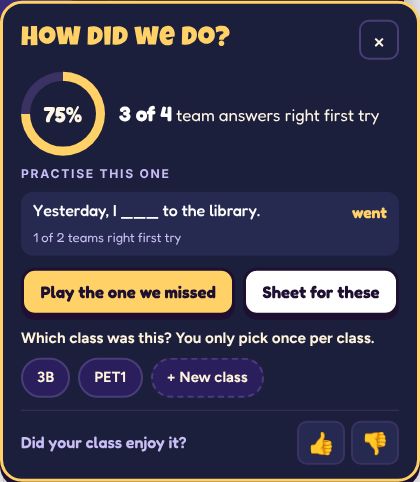
Look at the How did we do? card
When the game ends the card shows the class's first-try score and the questions they missed most.
Open Class results
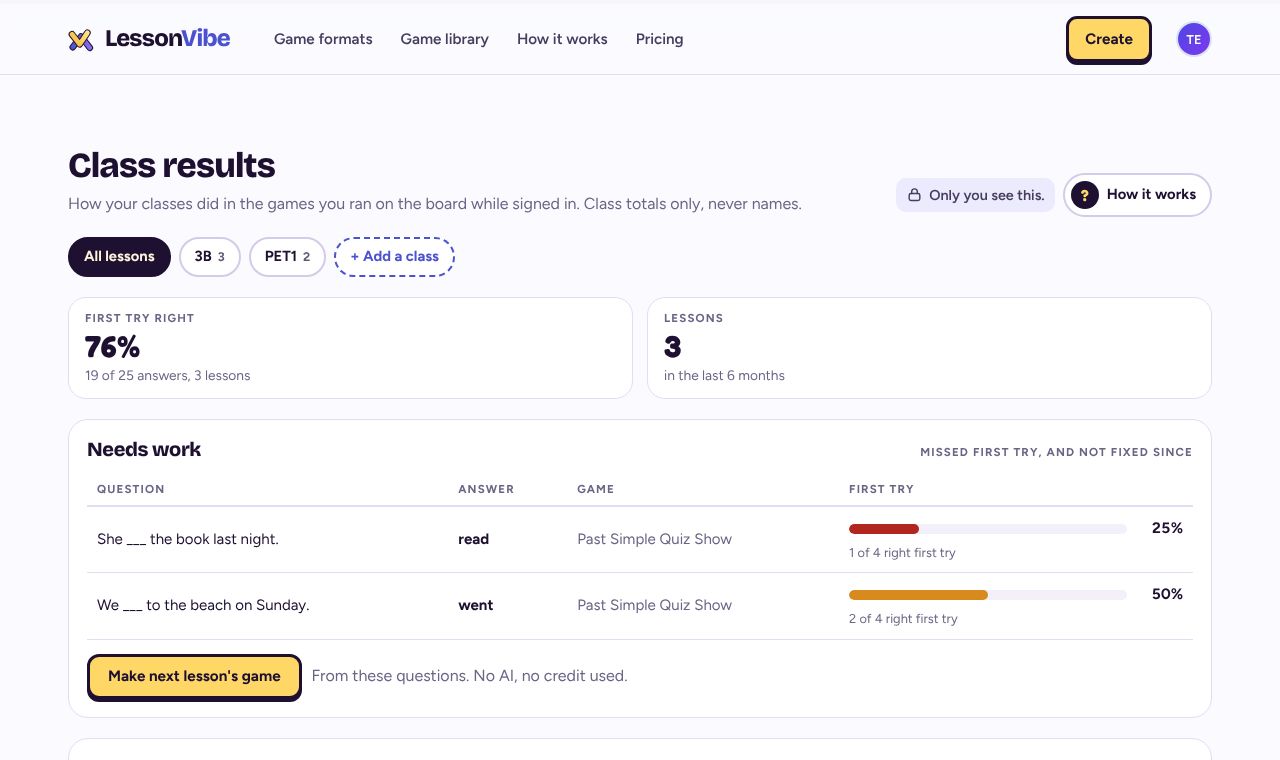
From the account menu. The top shows First try right across your lessons. Below are your lessons, newest first.
Open a lesson
Each lesson lists its questions weakest first, with the right answer. Open the game takes you back to it.
Check Needs work
Questions fewer than 6 in 10 got right first time, and still not right the last time they came up. Once the class gets one right in a later lesson, it drops off.
What first try means
The score counts the first answer to each question. A steal, a second go or the round that fixes the misses doesn't change it, so it shows what the class knew the first time.
Who sees it
Only you, and only games you ran while signed in. Class totals only: no names, and nothing students type is saved. The page shows the last 6 months.
Related
- How to add your classes and tag a lesson
- How to replay the questions your class missed
- How to host a game on the board
Still stuck? Email hello@lessonvibe.com and a real person will write back.