Help centre › Running a game in class
How to host a game on the board
For teachers · 2 minutes · No student accounts
Open the game's page on your class screen, press the game's full screen button, pick your teams and press Start. Students don't need accounts or devices.
Step by step
Open the game page on the class screen
From the library, from My games, or from a link another teacher sent you. The game is at the top of the page and Use it with your class is beside it.
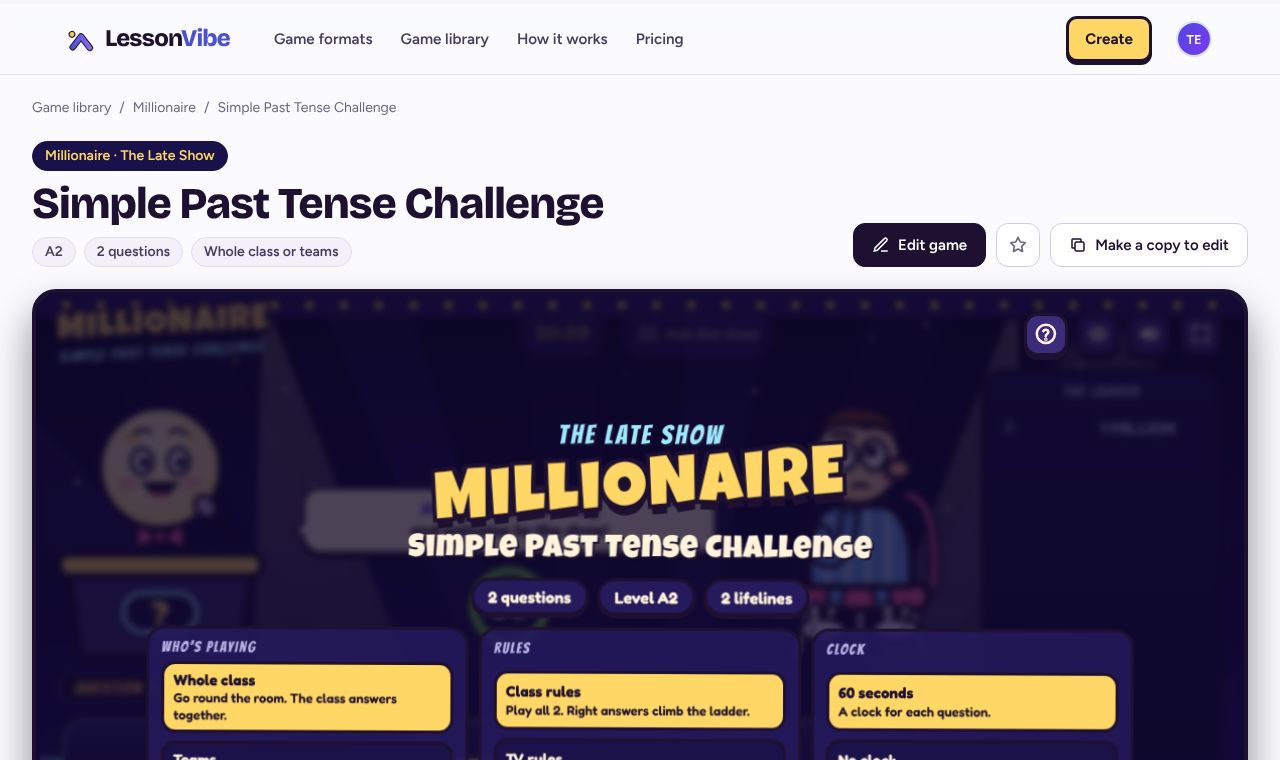
Press full screen
Every game has a full screen button in its corner. The game fills the board. Press Esc to come back.
Pick teams and rules
The start screen lets you choose how many teams play and which rules to use. Scores are for teams, never for single students.
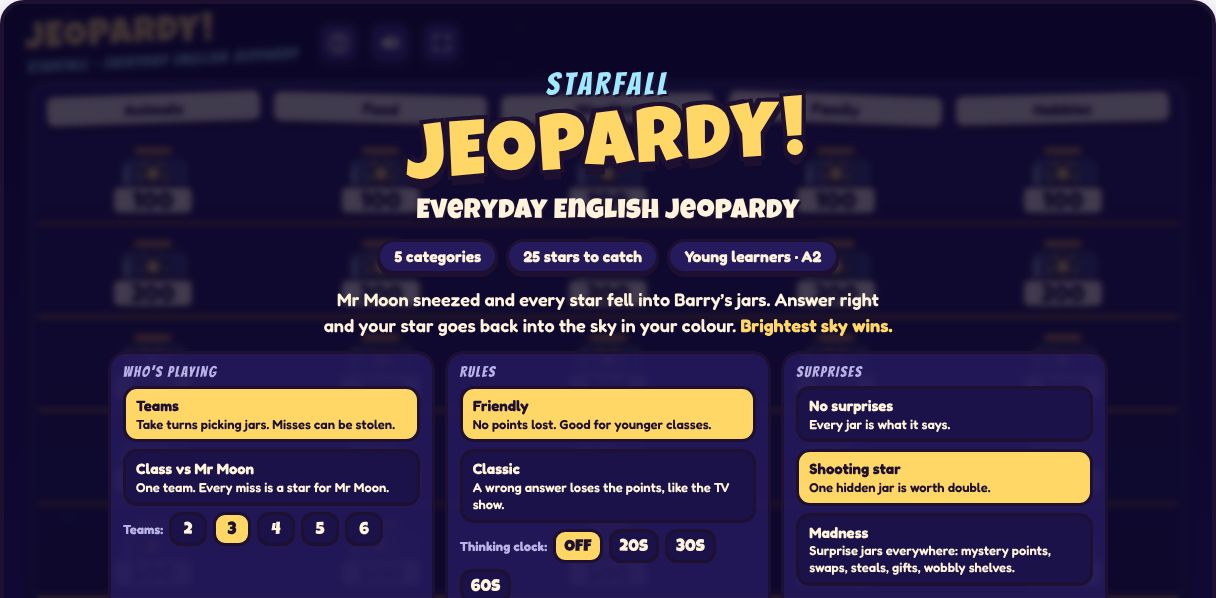
Play
Teams answer out loud or with hands up, and you tap their answer on the board. The game keeps the score.
The ? button in most games opens the teacher controls: keys, undo, change a score and end the game early.
Finish with How did we do?
Many games end with a How did we do? card: what the class got right first time, and the ones to play again. Signed in, it is kept in Class results.
If it doesn't work
Full screen doesn't work
Some school computers block it. Zoom the browser out (Ctrl and minus) so the whole game fits, or press F11 for the browser's own full screen.
There's no sound
Check the sound button in the game, then the computer's volume. Browsers only play sound after the first click on the page.
Students want to play at home
Press Show QR code on the game page, or share the link. Anyone can play it, no account needed.
Want students to answer on their phones? Some games can do that. See how to bring students' phones into a game.
Related
- How to bring students' phones into a game
- How to print a worksheet for a game
- How to see how your class did
Still stuck? Email hello@lessonvibe.com and a real person will write back.