Help centre › Running a game in class
How to bring students' phones into a game
For teachers · 3 minutes · No student accounts
Publish the game, choose phones on its start screen, and students scan the QR code on the board. They join as a team colour, never with a name. You can lock the class and remove any phone.
Step by step
Pick a game that uses phones
Stop the Bus (teams type their answers on a phone), Penalty Shootout and Basketball Shootout (a secret team vote), Story Adventure (Read together: the class votes on what happens next) and Live Quiz (every student answers on their own phone, for teens and adults).
Phones are always off until you choose them. Young learners play on paper or hands up.
Make sure the game is published
Phones join a game through its link, so they only work on a published game. Games from the library are already published.
Choose phones on the start screen
In Stop the Bus set Answers to On phones. In the shootouts pick Phone vote. In Story Adventure press Read together. Live Quiz always uses phones.
Students scan the code
The board shows a QR code, an address such as lessonvibe.com/g/BUS42/1339, and your class number. Students scan the code or type the address, then pick their team.
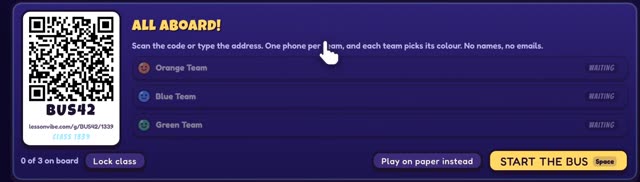
Lock the class and start
Watch the teams fill up. Press Lock class once everyone is in, so no one else can join. The ✕ next to a phone takes it out of the game. Then start.
Watch: ESL Game: Stop the Bus, on paper and on phones (2:22), from ESL Kids Games, our sister channel.
If it doesn't work
A phone says it can't connect
Some school networks block the game's live connection. See phones can't connect.
Do students need an account or an app?
No. They open a web page. We never ask for a name or an email, and nothing a student types is saved.
Two classes are playing the same game
Each class gets its own class number, so they never see each other.
Send your students to How to join your class on a phone. It has a 20-second video.
Related
Still stuck? Email hello@lessonvibe.com and a real person will write back.