Help centre › Running a game in class
How to join your class on a phone
For students · 1 minute · No account needed
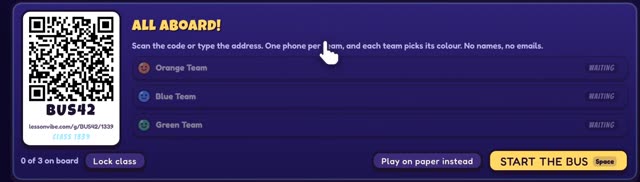
Scan the QR code on the board with your phone camera, pick your team, then watch the board. You don't need an account or an app, and we never ask for your name.
20 seconds · no sound needed · Stop the Bus shown, other phone games work the same way.
Step by step
Scan the QR code on the board
Open your phone's camera and point it at the code. Tap the link that pops up.
No camera? Type the address under the code into your browser, for example lessonvibe.com/g/BUS42/1339. The last number is your class number.
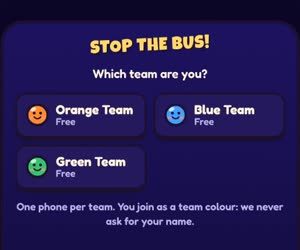
Tap your team
Your teacher tells you which team you're in. In some games there is one phone per team.
You join as a team colour, never with your name.
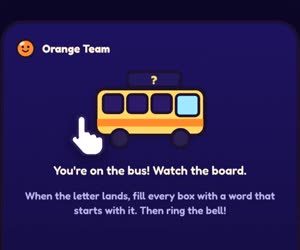
Watch the board
Your phone says you're in. The game starts when your teacher presses Start.
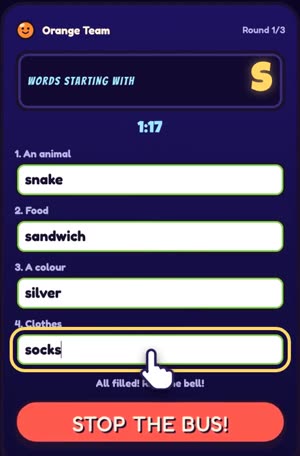
Play on your phone
Answer on the phone while the board shows the game. In Stop the Bus your team types a word in every box, then rings the bell.
If it doesn't work
My phone says it can't connect
Some school Wi-Fi blocks the game. Your phone will say: "Can't connect to your class from this network. Play along on the board with your team." Try mobile data if your teacher says that's OK. If not, play with your team on the board.
It asks me for a class number
You typed the short address without the class number. Type the number shown on the board under the QR code.
It says "Reconnecting"
Wait a few seconds. Your phone finds the class again by itself, and your team stays in.
It says my team already has a phone
Someone in your team joined first. Share their phone, or pick another team if your teacher says so.
Are you the teacher? Read How to bring students' phones into a game: which games use phones, locking the class and removing a phone.
Related
- How to bring students' phones into a game
- Phones can't connect: what to do
- How to host a game on the board
Still stuck? Email hello@lessonvibe.com and a real person will write back.