How to make a game with AI
For teachers · 2 minutes · Free account
Press Create, answer four short questions (goal, who's playing, topic, game), choose Speed it up with AI, and you get a first draft in seconds. Check it and change anything before class.
Step by step
Press Create
Sign in, then press Create at the top of the page.
Pick your goal
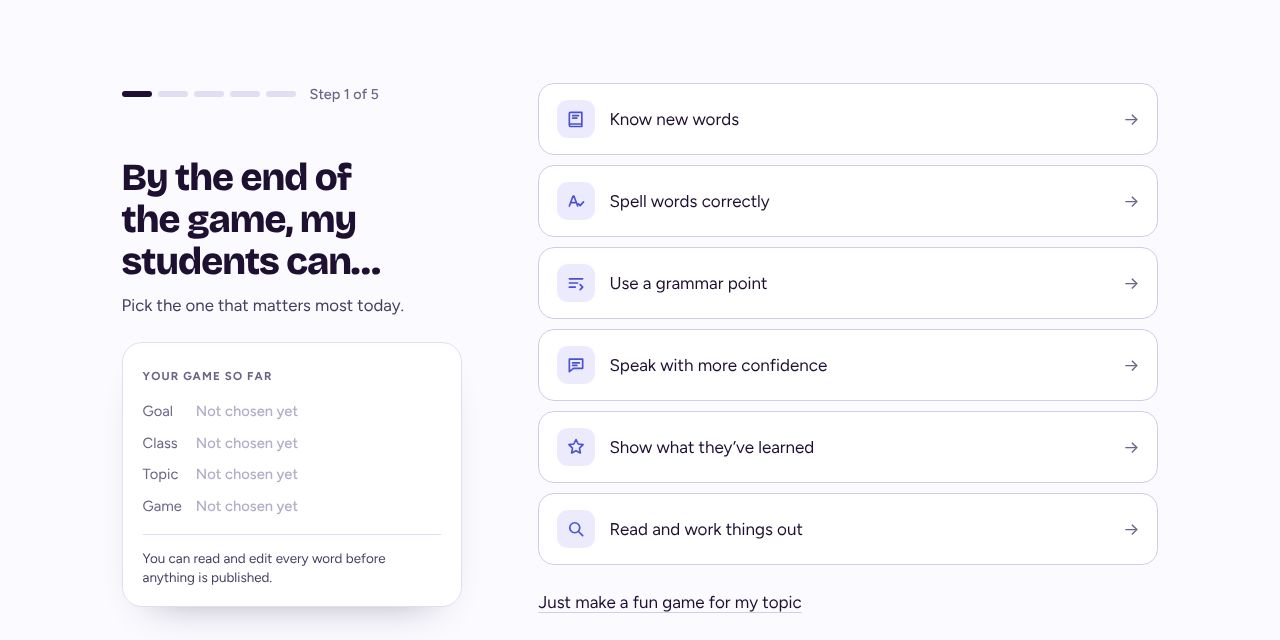
"By the end of the game, my students can..." Pick the one that matters most today: know new words, spell them, use a grammar point, speak with more confidence, show what they've learned, or read and work things out. Or just make a fun game for your topic.
Say who's playing
Pick A language or Another subject, then the level and age. These matter most: every question is pitched at the level you pick.
Type your topic or paste a word list
A topic ("Daily routines"), a word list ("Food: bread, milk, apple, rice") or a few lines from your lesson plan. Word games use exactly the words you paste.
Pick the game
We suggest one game for your goal and say how it plays. Press Use to take it, or pick another from the full list of games.
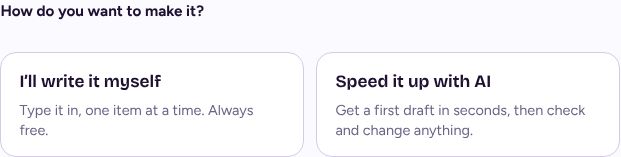
Set it up and choose Speed it up with AI
Choose how long, and the game's options. Under How do you want to make it? pick Speed it up with AI. You can add words it must include, words to keep out, and anything else about your class.
Check and edit the draft
Your draft opens in seconds. Read it through and change anything you like, the same way as editing a game. It is your game.
If it doesn't work
How many AI games can I make?
A free account makes 5 AI games to start. Games you write yourself are always free. See free games and Pro.
A question is wrong or too hard
Change it in the editor and press Save changes. Picking the right level and age at the start fixes most of these.
Is my game public?
Yes, new games go into the library so other teachers can play them. Pro teachers can make any game private from My games.
Related
- How to make a game by hand (no AI)
- How to edit a game before you play
- Free games and Pro: what you get
Still stuck? Email hello@lessonvibe.com and a real person will write back.